
Azure environments are not always decommissioned immediately.
A legacy application may need to remain operational for several months while workloads are migrated, data is retained, or dependencies are removed. During that period, the organisation may want to prevent the environment from continuing to grow.
The requirement is:
Keep the existing Azure environment operational, but prevent uncontrolled deployment of new resources.
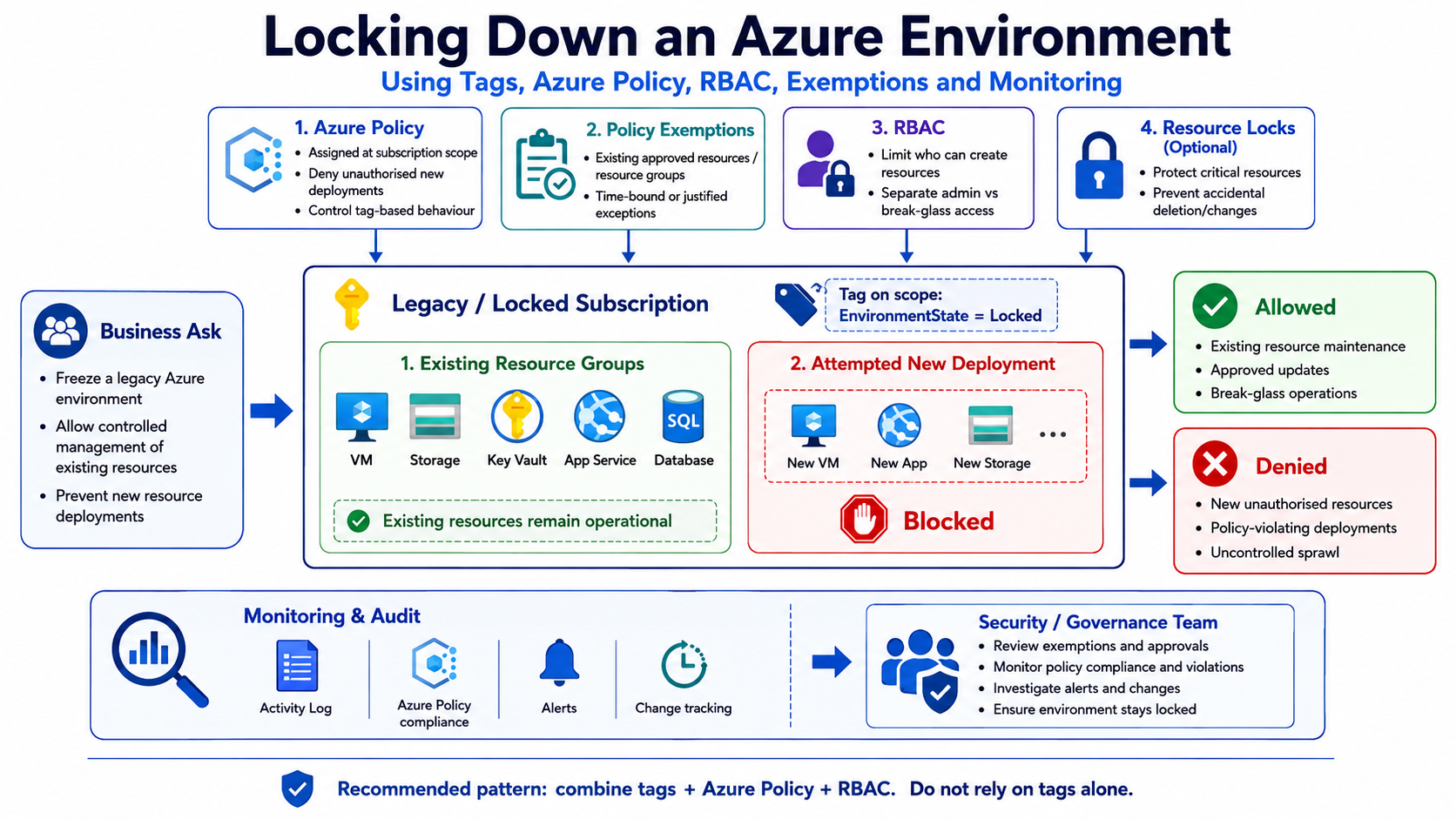
The proposed control
The implementation uses three controls:
- A resource-group tag identifies the environment as frozen.
- Azure Policy denies resource deployments in tagged resource groups.
- Azure RBAC limits who can change the tag, policy assignment, or exemptions.
The example tag is:
EnvironmentState = Frozen
Apply the tag to each resource group that forms part of the legacy environment.
Important limitation
Azure Policy evaluates the resulting state of a resource during both creation and update operations. A standard deny policy therefore does not provide a universal way to block only new resources while allowing every update to every existing resource.
In practice, a frozen environment should operate through a controlled-change model:
- Existing workloads continue running.
- New resources are denied.
- Changes that trigger an Azure Resource Manager write may also be denied.
- Approved maintenance is performed through a documented exception or temporary policy exemption.
- Emergency access is restricted to a break-glass process.
This makes the environment genuinely frozen rather than simply labelled as frozen.
Azure Policy definition
Create a file named:
deny-resources-in-frozen-resource-groups.json
Add the following policy definition:
{
  "properties": {
    "displayName": "Deny resource deployments in frozen resource groups",
    "description": "Denies resource creation or update when the parent resource group is tagged EnvironmentState=Frozen.",
    "policyType": "Custom",
    "mode": "All",
    "metadata": {
      "category": "Governance"
    },
    "parameters": {
      "tagName": {
        "type": "String",
        "defaultValue": "EnvironmentState"
      },
      "tagValue": {
        "type": "String",
        "defaultValue": "Frozen"
      },
      "effect": {
        "type": "String",
        "allowedValues": [
          "Audit",
          "Deny",
          "Disabled"
        ],
        "defaultValue": "Audit"
      }
    },
    "policyRule": {
      "if": {
        "allOf": [
          {
            "value": "[resourceGroup().tags[parameters('tagName')]]",
            "equals": "[parameters('tagValue')]"
          },
          {
            "field": "type",
            "notEquals": "Microsoft.Resources/subscriptions/resourceGroups"
          }
        ]
      },
      "then": {
        "effect": "[parameters('effect')]"
      }
    }
  }
}
The resourceGroup() function reads the tag from the resource’s parent resource group.
The policy starts in Audit mode so its impact can be assessed before enforcement.
Deploy the policy with PowerShell
Connect to Azure and select the target subscription:
Connect-AzAccount

Set-AzContext `
    -SubscriptionId "<subscription-id>"
Create the custom policy definition:
$PolicyDefinition = New-AzPolicyDefinition `
    -Name "deny-resources-in-frozen-resource-groups" `
    -DisplayName "Deny resource deployments in frozen resource groups" `
    -Description "Restricts deployments in resource groups tagged as frozen." `
    -Policy "deny-resources-in-frozen-resource-groups.json" `
    -Mode All
Assign the policy at subscription scope in audit mode:
$SubscriptionId = (Get-AzContext).Subscription.Id
$Scope = "/subscriptions/$SubscriptionId"

New-AzPolicyAssignment `
    -Name "audit-frozen-resource-groups" `
    -DisplayName "Audit frozen resource groups" `
    -Scope $Scope `
    -PolicyDefinition $PolicyDefinition `
    -PolicyParameterObject @{
        tagName  = "EnvironmentState"
        tagValue = "Frozen"
        effect   = "Audit"
    }
Tag the legacy resource group:
Update-AzTag `
    -ResourceId "/subscriptions/<subscription-id>/resourceGroups/<resource-group-name>" `
    -Tag @{
        EnvironmentState = "Frozen"
    } `
    -Operation Merge
Validate before enforcement
Before enabling Deny, validate the policy against a non-production resource group.
| Test | Expected result in audit mode |
|---|---|
| Deploy a new resource into an untagged resource group | Not affected |
Deploy into a resource group tagged EnvironmentState=Frozen |
Reported as non-compliant |
| Update an existing resource in the frozen resource group | May be reported as non-compliant |
| Remove the tag | Only permitted to authorised administrators |
Existing resources that match a deny policy are reported as non-compliant, but they are not automatically deleted or modified. The deny effect is enforced when a create or update request is submitted.
Enable enforcement
Once the impact has been reviewed, update the assignment to use Deny:
$Assignment = Get-AzPolicyAssignment `
    -Name "audit-frozen-resource-groups" `
    -Scope $Scope

Set-AzPolicyAssignment `
    -Id $Assignment.PolicyAssignmentId `
    -PolicyParameterObject @{
        tagName  = "EnvironmentState"
        tagValue = "Frozen"
        effect   = "Deny"
    }
You may also rename the assignment during implementation so its name reflects that enforcement is active.
Handling an approved change
When maintenance is required, use a controlled process rather than permanently weakening the policy.
The change process should include:
- A documented change request.
- Approval from the environment owner.
- A temporary policy exemption or temporary removal of the frozen classification.
- Completion and validation of the change.
- Immediate restoration of the control.
- Review of the Azure Activity Log.
An example PowerShell exemption is:
$Assignment = Get-AzPolicyAssignment `
    -Name "audit-frozen-resource-groups" `
    -Scope $Scope

New-AzPolicyExemption `
    -Name "approved-maintenance-window" `
    -DisplayName "Approved maintenance window" `
    -Scope "/subscriptions/<subscription-id>/resourceGroups/<resource-group-name>" `
    -PolicyAssignment $Assignment `
    -ExemptionCategory Waiver `
    -ExpiresOn (Get-Date).AddHours(4)
A resource-group exemption applies to applicable resources within that resource group, so it should be short-lived and used only during an approved maintenance window.
Protecting the control
The policy is ineffective if normal resource operators can remove the tag or create their own exemptions.
Restrict the following permissions to the governance team:
Microsoft.Resources/tags/write
Microsoft.Authorization/policyAssignments/write
Microsoft.Authorization/policyExemptions/write
Microsoft.Authorization/policyDefinitions/write
Also monitor:
- Changes to the
EnvironmentStatetag - Policy assignment changes
- Policy exemptions
- Failed deployments caused by policy
- Role assignments at subscription and resource-group scope
Recommended rollout
Use this sequence:
Inventory → Tag → Audit → Test → Enforce → Monitor
Do not apply the deny effect directly to production without testing common operational activities first.
Conclusion
Tags provide the classification, Azure Policy provides enforcement, and RBAC protects the governance controls.
The result is not an environment where every existing resource remains freely changeable. It is an environment where existing workloads continue running, new deployment is stopped, and future changes follow a controlled exception process.
Written by Usman Mahmood
Founder of The Cloud Captain, sharing practical guidance on Azure architecture, governance, networking and cloud transformation.
P.S. Further reading: Microsoft Learn provides detailed guidance on Azure Policy deny effects, policy rule structure, policy exemptions, and Azure tag governance.