
Deployment assumption
This version is written for a new POC deployment. It does not include cleanup or reset steps for an earlier Azure File Sync environment.
Public-document redaction notice
All personal, tenant-specific, subscription-specific, domain-specific, IP-address, email-address, and uniquely identifying resource values have been replaced with generic placeholders. Replace placeholders only in a controlled working copy.
| Document item | Value |
|---|---|
| Audience | Cloud architects, infrastructure engineers, Windows administrators, and POC facilitators |
| Scope | Azure Files migration validation using Azure File Sync and direct SMB access through on-premises AD DS/Kerberos |
| Deployment method | Azure portal wherever practical; PowerShell for AD DS, ACLs, diagnostics, and repeatable checks |
| Document status | Reusable public runbook and detailed command record |
| Security note | Do not place real credentials, account keys, tenant IDs, subscription IDs, or production IP addresses in this document |
Contents
- Purpose, scope, and success criteria
- Reference architecture and placeholders
- Phase 1 - Active Directory users and security group
- Phase 2 - Source folders, test data, and NTFS ACLs
- Phase 3 - Create the Azure storage account and file share
- Phase 4 - Azure Files private endpoint and DNS validation
- Phase 5 - Create the Storage Sync Service
- Phase 6 - Storage Sync private endpoint validation
- Phase 7 - Install the Azure File Sync agent
- Phase 8 - Create the sync topology
- Phase 9 - Validate synchronization
- Phase 10 - Enable on-premises AD DS authentication
- Phase 11 - Assign share-level RBAC
- Phase 12 - Test Kerberos and ACL isolation
- Troubleshooting guide
- Validation checklist and evidence pack
- Production cutover considerations
- Appendix A - Complete command library
- Appendix B - Portal configuration checklist
1. Purpose, scope, and success criteria
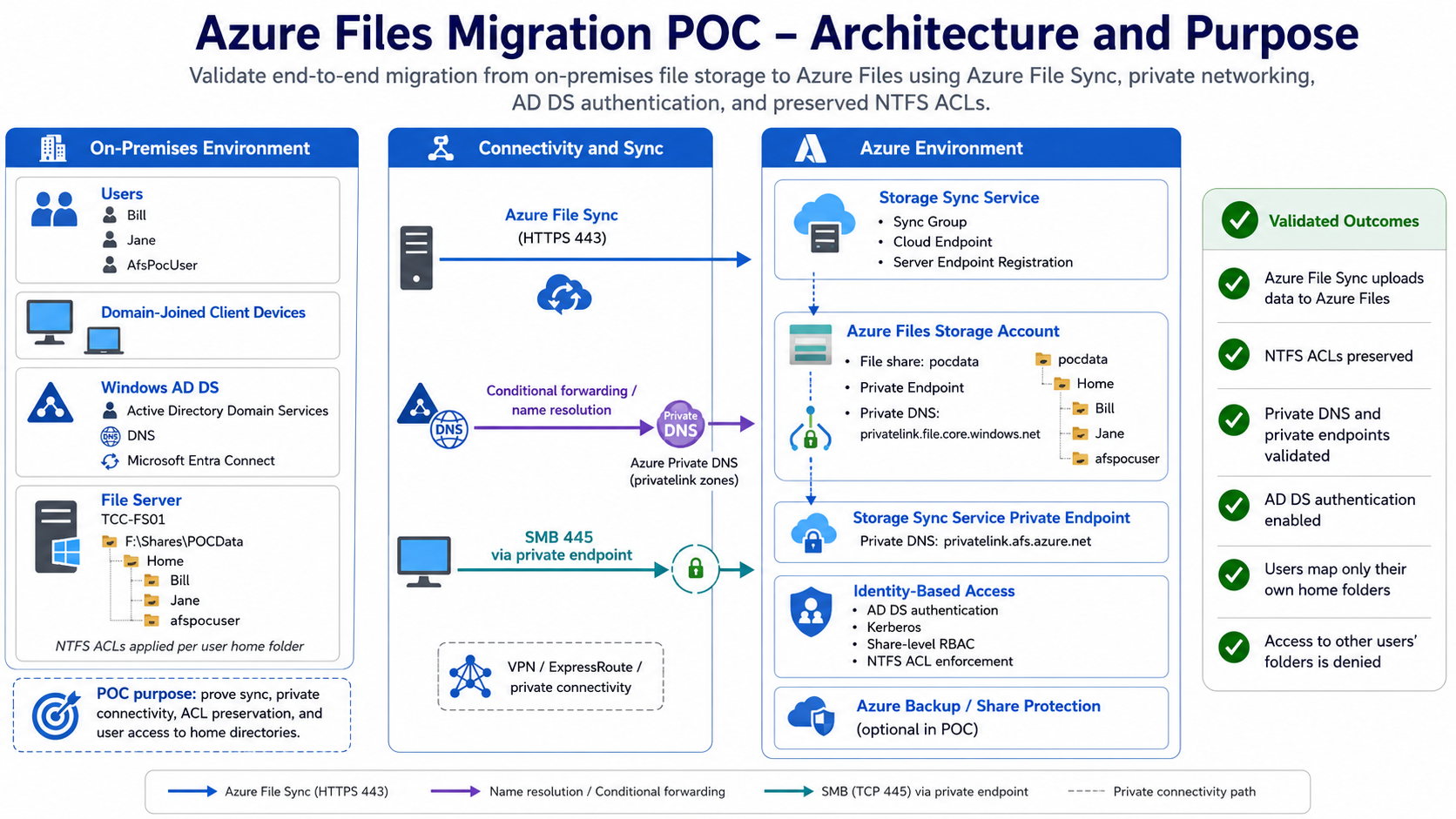
This runbook documents a complete Azure Files migration proof of concept. The POC validates two related but separate paths:
| Path | What it proves |
|---|---|
| Azure File Sync path | A Windows file server can synchronize files, folders, and NTFS security descriptors to an Azure file share over private connectivity. |
| Direct Azure Files access path | Domain users can map an Azure Files UNC path using on-premises AD DS/Kerberos and can access only the folders permitted by Azure RBAC and NTFS ACLs. |
Critical distinction
Azure File Sync can be healthy even when end-user SMB mapping is not yet configured. Synchronization authentication and user SMB authentication are separate concerns.
The POC is successful when all of the following are demonstrated:
- Azure Files and Storage Sync Service private endpoints resolve to private IP addresses.
- TCP 443 succeeds from the file server to required Azure File Sync endpoints.
- TCP 445 succeeds from the domain-joined test client to the Azure Files private endpoint.
- The file server registers successfully and the server endpoint becomes healthy.
- Files, folders, and NTFS ACLs synchronize to the Azure file share.
- The storage account is configured for on-premises AD DS authentication.
- A synchronized security group receives the Storage File Data SMB Share Contributor role at file-share scope.
- Each test user maps only their own home folder using Kerberos, without a storage account key.
- Cross-user access is denied by NTFS ACLs.
2. Reference architecture and placeholders
| Placeholder | Example meaning |
|---|---|
<AD_DOMAIN_FQDN> |
contoso.example |
<AD_NETBIOS> |
CONTOSO |
<DOMAIN_CONTROLLER> |
DC01 |
<FILE_SERVER> |
FS01 |
<SOURCE_PATH> |
F:\Shares\POCData |
<LOCAL_SHARE_NAME> |
POCData |
<SUBSCRIPTION_ID> |
Redacted GUID |
<TENANT_ID> |
Redacted GUID |
<RESOURCE_GROUP> |
rg-files-poc |
<AZURE_REGION> |
Canada Central or the approved region |
<STORAGE_ACCOUNT> |
Globally unique lowercase name |
<FILE_SHARE> |
pocdata |
<STORAGE_SYNC_SERVICE> |
afs-poc-sync |
<SYNC_GROUP> |
afs-poc-syncgroup |
<PE_SUBNET> |
Private-endpoint subnet |
<AZURE_FILES_OU_DN> |
OU=AzureFilesPOC,DC=contoso,DC=example |
<ACCESS_GROUP> |
SG-AzureFiles-POC-Contributors |
On-premises file server
<SOURCE_PATH>
└── Home
    ├── User01
    ├── User02
    └── User03

Azure
<STORAGE_ACCOUNT> / <FILE_SHARE>
        ↑ Azure File Sync over TCP 443
<STORAGE_SYNC_SERVICE> / <SYNC_GROUP>

Direct user access
\\<STORAGE_ACCOUNT>.file.core.windows.net\<FILE_SHARE>\Home\User01
3. Phase 1 - Active Directory users and security group
Create or confirm multiple enabled domain users. Use one synchronized security group for Azure share-level RBAC, while using individual NTFS ACLs for each home folder.
Run location
Run all Active Directory cmdlets in this phase on
<DOMAIN_CONTROLLER>, or another management server with the ActiveDirectory PowerShell module installed.
Import-Module ActiveDirectory

$Users = @("User01", "User02", "User03")
foreach ($User in $Users) {
    Get-ADUser -Filter "Name -eq '$User' -or SamAccountName -eq '$User'" `
        -Properties UserPrincipalName, Enabled |
        Select-Object Name, SamAccountName, UserPrincipalName, Enabled
}
For a full reset, remove and recreate the POC group only after confirming it is not used elsewhere:
# Optional clean reset of the POC group
Remove-ADGroup -Identity "<ACCESS_GROUP>" -Confirm:$true

New-ADGroup `
    -Name "<ACCESS_GROUP>" `
    -SamAccountName "<ACCESS_GROUP>" `
    -GroupCategory Security `
    -GroupScope Global `
    -Path "CN=Users,DC=<DOMAIN_COMPONENT_1>,DC=<DOMAIN_COMPONENT_2>" `
    -Description "POC users permitted to access the Azure Files share"

Add-ADGroupMember `
    -Identity "<ACCESS_GROUP>" `
    -Members "user01","user02","user03"

Get-ADGroupMember "<ACCESS_GROUP>" |
    Select-Object Name, SamAccountName, ObjectClass
Trigger a delta synchronization on the server hosting Microsoft Entra Connect:
Import-Module ADSync
Start-ADSyncSyncCycle -PolicyType Delta
In Microsoft Entra ID, verify that the group source is Windows Server AD and that all expected members are visible before assigning Azure RBAC.
4. Phase 2 - Source folders, test data, and NTFS ACLs
Run location
Run this phase on
<FILE_SERVER>in Windows PowerShell as Administrator.
$RootPath = "F:\Shares\POCData"
$HomePath = Join-Path $RootPath "Home"

New-Item -Path $HomePath -ItemType Directory -Force
New-Item -Path "$HomePath\User01" -ItemType Directory -Force
New-Item -Path "$HomePath\User02" -ItemType Directory -Force
New-Item -Path "$HomePath\User03" -ItemType Directory -Force

"Private test data for User01" | Set-Content "$HomePath\User01\User01-Test.txt"
"Private test data for User02" | Set-Content "$HomePath\User02\User02-Test.txt"
"Private test data for User03" | Set-Content "$HomePath\User03\User03-Test.txt"
PowerShell variable warning
Do not use $Home as a custom variable. $HOME is a built-in, read-only PowerShell variable that points to the current user profile.
Apply a controlled ACL boundary at the Home root, then individual permissions on each user folder:
$Domain = "<AD_NETBIOS>"
$HomePath = "F:\Shares\POCData\Home"

# Home root: administrators and SYSTEM retain full control;
# the common group receives read/traverse only.
icacls $HomePath /inheritance:r
icacls $HomePath /grant:r `
    "$Domain\Domain Admins:(OI)(CI)(F)" `
    "SYSTEM:(OI)(CI)(F)" `
    "$Domain\<ACCESS_GROUP>:(RX)"

# User01
icacls "$HomePath\User01" /inheritance:r
icacls "$HomePath\User01" /grant:r `
    "$Domain\user01:(OI)(CI)(M)" `
    "$Domain\Domain Admins:(OI)(CI)(F)" `
    "SYSTEM:(OI)(CI)(F)"

# User02
icacls "$HomePath\User02" /inheritance:r
icacls "$HomePath\User02" /grant:r `
    "$Domain\user02:(OI)(CI)(M)" `
    "$Domain\Domain Admins:(OI)(CI)(F)" `
    "SYSTEM:(OI)(CI)(F)"

# User03
icacls "$HomePath\User03" /inheritance:r
icacls "$HomePath\User03" /grant:r `
    "$Domain\user03:(OI)(CI)(M)" `
    "$Domain\Domain Admins:(OI)(CI)(F)" `
    "SYSTEM:(OI)(CI)(F)"
Verify the final ACLs and save the pre-migration baseline:
icacls $HomePath
icacls "$HomePath\User01"
icacls "$HomePath\User02"
icacls "$HomePath\User03"

New-Item C:\POCReports -ItemType Directory -Force
icacls "F:\Shares\POCData" `
    /save "C:\POCReports\PreMigrationACLs.txt" `
    /t /c
| Folder | Expected NTFS permission |
|---|---|
| Home | <ACCESS_GROUP>: Read/Traverse; Domain Admins and SYSTEM: Full Control |
| Home\User01 | user01: Modify; Domain Admins and SYSTEM: Full Control |
| Home\User02 | user02: Modify; Domain Admins and SYSTEM: Full Control |
| Home\User03 | user03: Modify; Domain Admins and SYSTEM: Full Control |
5. Phase 3 - Create the Azure storage account and file share in the portal
This phase creates the Azure Files destination. The portal is used so the facilitator can see and explain each platform setting.
6.1 Create the storage account
-
In the Azure portal, search for Storage accounts and select Create.
-
On Basics, select the approved subscription and the existing POC resource group.
-
Enter a globally unique storage account name using lowercase letters and numbers only.
-
Select the approved Azure region. Use the same region for the Storage Sync Service when practical.
-
Select Azure Files as the primary service when the portal presents that option.
-
Select Standard performance. For a small functional POC, choose locally redundant storage unless resiliency testing requires another option.
-
Choose the file-share billing model approved for the POC. Provisioned v2 is valid, but it bills for provisioned capacity, IOPS, and throughput rather than only consumed data.
| Portal tab | Recommended POC selection | Why |
|---|---|---|
| Basics | Standard; LRS; approved region | Reduces cost and complexity while retaining full Azure Files functionality. |
| Advanced - Security | Secure transfer enabled; storage account key access enabled; minimum TLS 1.2 | Shared-key access remains available for compatibility, although the registered server may still use managed identity. |
| Advanced - Data Lake | Hierarchical namespace, SFTP, and NFS v3 disabled | These are not required for a standard SMB Azure Files migration POC. |
| Networking | Public network access disabled when private endpoint is configured during deployment | Ensures Azure Files is reachable only through the private endpoint. Keep public access temporarily enabled only when intentionally separating functional and private-network testing. |
| Data protection | File-share soft delete enabled; backup optional but recommended | Supports accidental-deletion recovery and a known recovery point. |
| Encryption | Microsoft-managed keys; SMB encryption in transit enabled | Suitable for a basic POC and avoids customer-managed-key prerequisites. |
| Tags | Apply required governance tags | Supports policy and cost attribution. |
6.2 Create the Azure Files private endpoint during storage-account deployment
-
On the Networking tab, select Disable public network access if private-only access is required.
-
Create a private endpoint targeting the storage account subresource file.
-
Select the VNet and private-endpoint subnet that are routable from the on-premises environment.
-
Enable private DNS integration and select or create the zone privatelink.file.core.windows.net.
-
Confirm the private DNS zone is linked to the VNet used by the private endpoint.
-
Complete Review + create and wait for deployment to finish.
What this does
The private endpoint allocates a private IP in the selected subnet. Clients continue using the normal
<STORAGE_ACCOUNT>.file.core.windows.net hostname; DNS changes its resolution to the private endpoint.
6.3 Create the file share
-
Open the storage account and select Data storage > File shares.
-
Select + File share.
-
Enter
<FILE_SHARE>as the SMB file-share name. -
For provisioned v2, select only the capacity, IOPS, and throughput needed for the POC. The default 1 TiB is technically valid but may cost significantly more than a small POC allocation.
-
Keep SMB as the protocol and use the recommended performance settings unless the POC includes performance testing.
-
Enable backup when required. A simple daily policy and short POC retention period is sufficient for functional validation.
-
Create the share and verify that it is initially empty. Do not manually create the home folders in Azure; Azure File Sync will upload them.
6. Phase 4 - Azure Files private endpoint and DNS validation
Run location
Run these tests on
<FILE_SERVER>. Repeat TCP 445 testing from the actual domain-joined end-user test client later.
nslookup <STORAGE_ACCOUNT>.file.core.windows.net
Resolve-DnsName <STORAGE_ACCOUNT>.file.core.windows.net

Test-NetConnection <STORAGE_ACCOUNT>.file.core.windows.net -Port 445
Test-NetConnection <STORAGE_ACCOUNT>.file.core.windows.net -Port 443
Expected DNS chain:
<STORAGE_ACCOUNT>.file.core.windows.net
  CNAME -> <STORAGE_ACCOUNT>.privatelink.file.core.windows.net
  A     -> <PRIVATE_ENDPOINT_IP>
Do not use ping
Azure Storage does not normally answer ICMP echo requests. Use nslookup or Resolve-DnsName for DNS, and Test-NetConnection for TCP 445 and 443.
7. Phase 5 - Create the Storage Sync Service in the portal
The Storage Sync Service is the top-level Azure File Sync resource. It contains registered servers and sync groups.
-
In the Azure portal, search for Storage Sync Services.
-
Select Create.
-
Choose the same subscription and POC resource group used for the storage account.
-
Enter
<STORAGE_SYNC_SERVICE>as the service name. -
Select the same Azure region as the Azure file share when practical.
-
On Networking, create a private endpoint during deployment when private-only connectivity is required.
-
For the private endpoint, select the Afs subresource, the approved VNet, and the private-endpoint subnet.
-
Enable private DNS integration and select or create privatelink.afs.azure.net.
-
Complete Review + create and open the deployed Storage Sync Service.
What this does
The Storage Sync Service coordinates server registration, sync groups, cloud endpoints, server endpoints, health, and synchronization metadata. Its private endpoint is separate from the Azure Files private endpoint.
8. Phase 6 - Storage Sync private endpoint and connectivity validation
The Storage Sync Service private endpoint publishes several service-specific FQDNs, commonly management, syncp, syncs, and monitoring names. The portal shows the exact names and assigned private IPs.
-
Open Storage Sync Service > Networking > Private endpoint connections.
-
Open the private endpoint and select DNS configuration.
-
Record the exact FQDNs shown. Do not invent the endpoint names.
-
For a quick check, test the management endpoint. For a comprehensive pre-agent check, test all FQDNs shown by the private endpoint.
-
After the agent is installed and the server is registered, use the Azure File Sync network diagnostic cmdlet for comprehensive validation.
# Quick check using the exact management FQDN shown in the portal
nslookup <MANAGEMENT_FQDN>
Test-NetConnection <MANAGEMENT_FQDN> -Port 443

# Optional pre-agent validation of every FQDN shown by the private endpoint
$AfsEndpoints = @(
    "<MANAGEMENT_FQDN>",
    "<SYNCP_FQDN>",
    "<SYNCS_FQDN>",
    "<MONITORING_FQDN>"
)
foreach ($Endpoint in $AfsEndpoints) {
    Test-NetConnection $Endpoint -Port 443 |
        Select-Object ComputerName, RemoteAddress, TcpTestSucceeded
}
9. Phase 7 - Install the Azure File Sync agent and register the server
Run location
Perform this phase on
<FILE_SERVER>using a local or domain administrator account.
-
Open the Storage Sync Service in the Azure portal and select Registered servers.
-
Use the agent download link to obtain the installer that matches the Windows Server version.
-
Run the installer as Administrator.
-
Enable Microsoft Update when prompted so the agent receives supported updates.
-
Reboot if the installer requests it.
-
After restart, open the Azure File Sync Server Registration interface.
-
Sign in to Azure and select the correct subscription, resource group, and
<STORAGE_SYNC_SERVICE>. -
Complete registration and allow the wizard to perform network validation.
-
In the portal, confirm that
<FILE_SERVER>appears under Registered servers and reports Online.
Authentication mode
Enabling storage account key access does not force Azure File Sync to use Shared Key. Current agents may register and synchronize using managed identity. This affects File Sync backend authentication only; end users still use AD DS/Kerberos.
# Confirm the agent service after installation
Get-Service FileSyncSvc

# After registration, comprehensive network test where supported
Import-Module "C:\Program Files\Azure\StorageSyncAgent\StorageSync.Management.ServerCmdlets.dll"
Test-StorageSyncNetworkConnectivity
10. Phase 8 - Create the sync group, cloud endpoint, and server endpoint
11.1 Create the sync group and cloud endpoint
-
Open
<STORAGE_SYNC_SERVICE>in the Azure portal. -
Select Sync groups and then + Sync group.
-
Enter
<SYNC_GROUP>as the sync-group name. -
Select the subscription containing the Azure file share.
-
Select
<STORAGE_ACCOUNT>. -
Select the empty
<FILE_SHARE>. -
Create the sync group. The selected Azure file share becomes the cloud endpoint.
What this does
A sync group defines the synchronization relationship. It contains one cloud endpoint, representing the Azure file share, and one or more server endpoints on registered Windows servers.
11.2 Add the server endpoint
-
Open the newly created sync group.
-
Select Add server endpoint.
-
Select the registered server
<FILE_SERVER>. -
Enter
<SOURCE_PATH>as the server endpoint path. -
Set Cloud tiering to Disabled for the basic POC. This keeps full file content on the source server and removes tiering from the test variables.
-
Set Initial upload to Merge when the Azure file share is empty. Use an authoritative option only when a deliberately pre-seeded cloud share requires it.
-
Set Initial download to Avoid tiered files when that option is presented.
-
Create the server endpoint and wait for its status to move toward Healthy.
Important
The server endpoint path is the local NTFS folder, not the SMB UNC path. Azure File Sync synchronizes NTFS security descriptors, but it does not migrate the local SMB share definition into Azure RBAC.
11. Phase 9 - Validate synchronization and portal access
# Run on <FILE_SERVER> to create a fresh change
"Initial sync test $(Get-Date)" |
    Set-Content "F:\Shares\POCData\InitialSyncTest.txt"

# Review recent completed sync sessions
Get-WinEvent `
    -LogName "Microsoft-FileSync-Agent/Telemetry" `
    -MaxEvents 100 |
Where-Object Id -eq 9102 |
Select-Object -First 5 TimeCreated, Id, Message |
Format-List
A successful upload session normally includes HResult 0, no failed transfers, and no persistent upload errors. The portal may temporarily show Pending even when telemetry confirms successful synchronization.
-
Open Storage account > File shares >
<FILE_SHARE>> Browse. -
Use Microsoft Entra user account as the portal authentication method.
-
Confirm that Home and its user folders are present.
-
If the administrative account cannot browse, assign Storage File Data Privileged Reader at the file-share scope. Do not assign this privileged role to end users.
-
After the initial upload, run an on-demand backup when Azure Files backup is enabled to capture a known recovery point.
12. Phase 10 - Enable on-premises AD DS authentication with AzFilesHybrid
Run location
Run this phase on
<DOMAIN_CONTROLLER>or a domain-joined management server using 64-bit Windows PowerShell 5.1 as Administrator.
13.1 Create a dedicated OU
Import-Module ActiveDirectory

Get-ADOrganizationalUnit -Filter "Name -eq 'AzureFilesPOC'" |
    Select-Object Name, DistinguishedName

# Create only when it does not exist
New-ADOrganizationalUnit `
    -Name "AzureFilesPOC" `
    -Path "DC=<DOMAIN_COMPONENT_1>,DC=<DOMAIN_COMPONENT_2>" `
    -ProtectedFromAccidentalDeletion $true
13.2 Verify PowerShell prerequisites and import AzFilesHybrid
$PSVersionTable.PSVersion
[Environment]::Is64BitProcess
Get-Module ActiveDirectory -ListAvailable
Get-Module Az.Accounts -ListAvailable
Get-Module Az.Storage -ListAvailable

Set-Location C:\AzFilesHybrid
.\CopyToPSPath.ps1
Import-Module AzFilesHybrid -Force
Get-Command Join-AzStorageAccount
Get-Command Debug-AzStorageAccountAuth
13.3 Connect to the correct Azure subscription
Connect-AzAccount

Get-AzSubscription |
    Select-Object Name, Id, TenantId, State

$Subscription = Get-AzSubscription |
    Where-Object Name -eq "<SUBSCRIPTION_NAME>"
$Subscription | Set-AzContext

Get-AzContext |
    Select-Object `
        @{Name="Account";Expression={$_.Account.Id}},
        @{Name="Subscription";Expression={$_.Subscription.Name}},
        @{Name="SubscriptionId";Expression={$_.Subscription.Id}},
        @{Name="TenantId";Expression={$_.Tenant.Id}}
Public-document rule
Never publish the real account email, subscription ID, tenant ID, or privileged administrator name. Store those values only in a secure working record.
13.4 Locate the storage account and define variables
Get-AzStorageAccount |
    Where-Object StorageAccountName -eq "<STORAGE_ACCOUNT>" |
    Select-Object StorageAccountName, ResourceGroupName, Location

$SubscriptionId       = "<SUBSCRIPTION_ID>"
$ResourceGroupName    = "<RESOURCE_GROUP>"
$StorageAccountName   = "<STORAGE_ACCOUNT>"
$OrganizationalUnitDN = "<AZURE_FILES_OU_DN>"
Set-AzContext -SubscriptionId $SubscriptionId
13.5 Check for stale AD objects and join the storage account
Get-ADObject `
    -LDAPFilter "(servicePrincipalName=cifs/$StorageAccountName.file.core.windows.net)" `
    -Properties servicePrincipalName |
    Select-Object Name, ObjectClass, DistinguishedName, ServicePrincipalName

Get-ADComputer `
    -Filter "Name -eq '$StorageAccountName'" `
    -Properties ServicePrincipalName |
    Select-Object Name, DistinguishedName, ServicePrincipalName

Join-AzStorageAccount `
    -ResourceGroupName $ResourceGroupName `
    -StorageAccountName $StorageAccountName `
    -SamAccountName $StorageAccountName `
    -DomainAccountType ComputerAccount `
    -OrganizationalUnitDistinguishedName $OrganizationalUnitDN
The join creates or configures an AD computer account representing the storage account and configures Azure Files to trust the on-premises AD DS domain.
13.6 Validate the AD object, SPN, and encryption
Get-ADComputer `
    -Identity $StorageAccountName `
    -Properties ServicePrincipalName,
                msDS-SupportedEncryptionTypes,
                DistinguishedName |
    Format-List Name,
                DistinguishedName,
                ServicePrincipalName,
                msDS-SupportedEncryptionTypes

Debug-AzStorageAccountAuth `
    -StorageAccountName $StorageAccountName `
    -ResourceGroupName $ResourceGroupName `
    -Verbose
Expected SPN: cifs/<STORAGE_ACCOUNT>.file.core.windows.net. Confirm the diagnostic reports a healthy Azure Files authentication configuration and modern Kerberos encryption.
13. Phase 11 - Assign Azure Files share-level RBAC
Azure RBAC provides permission to enter the SMB share. NTFS ACLs then decide which directories and files the user may access.
-
In Microsoft Entra ID, confirm that
<ACCESS_GROUP>is synchronized and contains the intended users. -
Open Storage account > File shares >
<FILE_SHARE>> Access control (IAM). -
Select Add > Add role assignment.
-
Select Storage File Data SMB Share Contributor.
-
Assign the role to
<ACCESS_GROUP>. -
Use the file-share scope for least privilege.
-
Leave default share-level permission disabled unless a deliberate broad-access model is required.
-
Allow time for Azure RBAC propagation before testing.
| Role | Use |
|---|---|
| Storage File Data SMB Share Contributor | Normal user read/write access through SMB; respects NTFS ACLs. |
| Storage File Data SMB Share Reader | Read-only SMB access; respects NTFS ACLs. |
| Storage File Data Privileged Reader | Administrative portal/data access that can bypass normal ACL evaluation for read operations; not for end users. |
| Storage File Data Privileged Contributor | Highly privileged administrative access; avoid for normal user mapping. |
14. Phase 12 - Test user mapping, Kerberos, and ACL isolation
15.1 Permit temporary RDP access for test users
Run location
Run these commands on
<FILE_SERVER>, because Remote Desktop Users is a local group on each server.
net localgroup "Remote Desktop Users" "<AD_NETBIOS>\user01" /add
net localgroup "Remote Desktop Users" "<AD_NETBIOS>\user02" /add
net localgroup "Remote Desktop Users" "<AD_NETBIOS>\user03" /add
net localgroup "Remote Desktop Users"
gpupdate /force
If Get-LocalGroupMember is unavailable, use ADSI to inspect the actual account paths:
$Group = [ADSI]"WinNT://./Remote Desktop Users,group"
$Group.psbase.Invoke("Members") | ForEach-Object {
    $Member = $_
    [PSCustomObject]@{
        Name = $Member.GetType().InvokeMember("Name","GetProperty",$null,$Member,$null)
        Path = $Member.GetType().InvokeMember("ADsPath","GetProperty",$null,$Member,$null)
        Class = $Member.GetType().InvokeMember("Class","GetProperty",$null,$Member,$null)
    }
}
15.2 Reset a forgotten test-user password when necessary
Run location
Run password reset commands on
<DOMAIN_CONTROLLER>.
Import-Module ActiveDirectory
Set-ADAccountPassword `
    -Identity "user01" `
    -Reset `
    -NewPassword (Read-Host "Enter new password" -AsSecureString)
Unlock-ADAccount -Identity "user01"
Enable-ADAccount -Identity "user01"
Set-ADUser -Identity "user01" -ChangePasswordAtLogon $false
15.3 Perform the user mapping test
Sign out completely, then sign in interactively as the domain user. Do not rely on Run as different user, because the SMB and Kerberos behavior must be tested using the user’s real logon token.
whoami
whoami /groups | findstr /i "<ACCESS_GROUP>"

nslookup <STORAGE_ACCOUNT>.file.core.windows.net
Test-NetConnection <STORAGE_ACCOUNT>.file.core.windows.net -Port 445

net use * /delete /y
klist purge
klist get cifs/<STORAGE_ACCOUNT>.file.core.windows.net
klist

net use H: \\<STORAGE_ACCOUNT>.file.core.windows.net\<FILE_SHARE>\Home\User01 /persistent:no
Get-ChildItem H:\

"Created through Azure Files: $(Get-Date)" |
    Set-Content H:\User01-Azure-Test.txt
Get-Content H:\User01-Azure-Test.txt

# Negative tests - these must fail with Access Denied
Get-ChildItem \\<STORAGE_ACCOUNT>.file.core.windows.net\<FILE_SHARE>\Home\User02
Get-ChildItem \\<STORAGE_ACCOUNT>.file.core.windows.net\<FILE_SHARE>\Home\User03
Do not use the key
Do not specify /user: and do not enter a storage account key during end-user tests. The test is intended to prove AD DS/Kerberos authentication and NTFS authorization.
15. Troubleshooting guide
| Symptom | Likely layer | Checks |
|---|---|---|
| Storage name resolves publicly or does not resolve | DNS/private endpoint | Private DNS zone record, VNet link, conditional forwarder, DNS resolver path. |
| TCP 445 fails | Routing/firewall | Private endpoint route, NSG, firewall, VPN/ExpressRoute, client subnet. |
| Server registration fails | Azure File Sync connectivity | Storage Sync private endpoint, TCP 443, proxy/TLS inspection, public endpoint setting, agent version. |
| Sync endpoint stays Pending | Synchronization health | Event ID 9102, HResult, persistent errors, server registration state; do not rebuild immediately. |
| Credential prompt appears during mapping | Kerberos or authorization | Run klist get; verify CIFS SPN, RBAC, group token, and NTFS ACLs. |
| Kerberos succeeds but access is denied | RBAC/NTFS ACL | Confirm share-level role, current group token, Home root traverse, and user-folder ACL. |
| User can access another user folder | NTFS ACL design | Remove inherited/broad permissions and reapply isolated folder ACLs. |
| RDP says user is not allowed | Local/server policy | Add domain account to Remote Desktop Users on the target server; verify Allow/Deny RDP user rights. |
| ActiveDirectory module missing | Wrong machine/tooling | Run AD cmdlets on the domain controller or install RSAT-AD-PowerShell. |
| $Home assignment fails | PowerShell reserved variable | Use $HomePath or another custom variable name. |
16. Validation checklist and evidence pack
| Evidence | Expected result |
|---|---|
| AD users and group | Users enabled; synchronized group contains all test users. |
| Source inventory | Folder/file list and pre-migration ACL export saved. |
| Azure Files DNS | Normal hostname resolves through privatelink to a private IP. |
| Azure Files connectivity | TCP 445 and 443 succeed from required sources. |
| Storage Sync DNS | Exact portal-generated FQDNs resolve privately. |
| Storage Sync connectivity | TCP 443 succeeds; agent diagnostic passes. |
| Registered server | Online in the Storage Sync Service. |
| Server endpoint | Healthy with no persistent sync errors. |
| Sync telemetry | Event ID 9102 with HResult 0 and no failed transfers. |
| Azure data | Home folders and representative files visible in the file share. |
| AD DS integration | Computer object, CIFS SPN, and healthy Debug-AzStorageAccountAuth output. |
| Share-level RBAC | <ACCESS_GROUP> assigned Storage File Data SMB Share Contributor at file-share scope. |
| Kerberos | CIFS service ticket retrieved successfully for each user. |
| Positive ACL test | Each user can create/read/delete files in their own folder. |
| Negative ACL test | Each user receives Access Denied against the other users’ folders. |
| Backup | On-demand recovery point captured after initial synchronization, when backup is in scope. |
17. Production cutover considerations
A successful POC proves the pattern but does not by itself constitute a production migration plan. Before production cutover:
- Inventory data size, file count, long paths, unsupported files, reparse points, open files, and stale SIDs.
- Confirm backup and restore testing for both source and Azure file share.
- Allow initial synchronization to finish and resolve every persistent error.
- Validate application dependencies, drive mappings, login scripts, DFS namespace targets, and hard-coded UNC paths.
- Plan a change freeze or read-only period for final synchronization.
- Confirm the final sync backlog is zero or within an approved tolerance.
- Update user mappings to the Azure Files UNC path or a stable DFS namespace.
- Keep the old server intact and read-only for an approved rollback period.
- Monitor Kerberos, SMB authorization, performance, and support incidents.
- Remove temporary RDP permissions and test accounts when the POC closes.
Appendix A - Complete command library
This appendix consolidates the principal commands used throughout the runbook. Replace all placeholders before execution.
# ==================== DOMAIN CONTROLLER ====================
Import-Module ActiveDirectory
Get-ADUser -Filter "Name -eq 'User01'" -Properties UserPrincipalName,Enabled
Get-ADGroupMember "<ACCESS_GROUP>"
Start-ADSyncSyncCycle -PolicyType Delta

New-ADOrganizationalUnit -Name "AzureFilesPOC" `
  -Path "DC=<DOMAIN_COMPONENT_1>,DC=<DOMAIN_COMPONENT_2>" `
  -ProtectedFromAccidentalDeletion $true

Set-ADAccountPassword -Identity "user01" -Reset `
  -NewPassword (Read-Host "Enter new password" -AsSecureString)
Unlock-ADAccount -Identity "user01"

# AzFilesHybrid
Set-Location C:\AzFilesHybrid
.\CopyToPSPath.ps1
Import-Module AzFilesHybrid -Force
Connect-AzAccount
Get-AzSubscription | Select Name,Id,TenantId,State
$Subscription | Set-AzContext

Join-AzStorageAccount `
  -ResourceGroupName "<RESOURCE_GROUP>" `
  -StorageAccountName "<STORAGE_ACCOUNT>" `
  -SamAccountName "<STORAGE_ACCOUNT>" `
  -DomainAccountType ComputerAccount `
  -OrganizationalUnitDistinguishedName "<AZURE_FILES_OU_DN>"

Debug-AzStorageAccountAuth `
  -StorageAccountName "<STORAGE_ACCOUNT>" `
  -ResourceGroupName "<RESOURCE_GROUP>" -Verbose

# ==================== FILE SERVER ====================
$RootPath = "F:\Shares\POCData"
$HomePath = Join-Path $RootPath "Home"
New-Item "$HomePath\User01" -ItemType Directory -Force

icacls $HomePath /inheritance:r
icacls $HomePath /grant:r `
  "<AD_NETBIOS>\Domain Admins:(OI)(CI)(F)" `
  "SYSTEM:(OI)(CI)(F)" `
  "<AD_NETBIOS>\<ACCESS_GROUP>:(RX)"

icacls "$HomePath\User01" /inheritance:r
icacls "$HomePath\User01" /grant:r `
  "<AD_NETBIOS>\user01:(OI)(CI)(M)" `
  "<AD_NETBIOS>\Domain Admins:(OI)(CI)(F)" `
  "SYSTEM:(OI)(CI)(F)"

icacls "F:\Shares\POCData" /save "C:\POCReports\PreMigrationACLs.txt" /t /c

nslookup <STORAGE_ACCOUNT>.file.core.windows.net
Test-NetConnection <STORAGE_ACCOUNT>.file.core.windows.net -Port 445
Test-NetConnection <STORAGE_ACCOUNT>.file.core.windows.net -Port 443

Get-Service FileSyncSvc
Get-WinEvent -LogName "Microsoft-FileSync-Agent/Telemetry" -MaxEvents 100 |
  Where-Object Id -eq 9102 | Select-Object -First 5 TimeCreated,Message | Format-List

net localgroup "Remote Desktop Users" "<AD_NETBIOS>\user01" /add
gpupdate /force

# ==================== USER SESSION ====================
whoami
whoami /groups | findstr /i "<ACCESS_GROUP>"
net use * /delete /y
klist purge
klist get cifs/<STORAGE_ACCOUNT>.file.core.windows.net
net use H: \\<STORAGE_ACCOUNT>.file.core.windows.net\<FILE_SHARE>\Home\User01 /persistent:no
Get-ChildItem H:\
Appendix B - Portal configuration checklist
| Resource/area | Portal path | Configuration to confirm |
|---|---|---|
| Storage account | Storage accounts > Create | Standard, approved redundancy, TLS 1.2, secure transfer, shared-key policy, encryption, tags. |
| Azure Files PE | Storage account deployment > Networking | Subresource file; approved VNet/subnet; privatelink.file.core.windows.net. |
| File share | Storage account > File shares > + File share | SMB; <FILE_SHARE>; appropriate provisioned capacity/performance; backup as required. |
| Storage Sync Service | Storage Sync Services > Create | <STORAGE_SYNC_SERVICE>; approved region/resource group. |
| Storage Sync PE | Storage Sync Service deployment > Networking | Subresource Afs; approved VNet/subnet; privatelink.afs.azure.net. |
| Registered server | Storage Sync Service > Registered servers | <FILE_SERVER> is Online. |
| Sync group/cloud endpoint | Storage Sync Service > Sync groups > + Sync group | <SYNC_GROUP>; <STORAGE_ACCOUNT>; <FILE_SHARE>. |
| Server endpoint | Sync group > Add server endpoint | <FILE_SERVER>; <SOURCE_PATH>; tiering disabled; Merge initial upload. |
| Identity-based access | Storage account > File shares > Identity-based access | On-premises AD DS configured; default share-level permission disabled. |
| Share RBAC | File share > Access control (IAM) | <ACCESS_GROUP> has Storage File Data SMB Share Contributor at file-share scope. |
| Data browse | File share > Browse | Microsoft Entra user account selected; synchronized Home folders visible. |
| Backup | Backup Center / file-share backup | Policy applied and on-demand recovery point captured when in scope. |
End state
The completed POC provides private synchronization from a Windows file server to Azure Files, preserves NTFS ACLs, enables on-premises AD DS/Kerberos authentication, and demonstrates per-user home-folder isolation without exposing storage account keys to end users.
Written by Usman Mahmood
Founder of The Cloud Captain, sharing practical guidance on Azure architecture, governance, networking and cloud transformation.